| Action | Control | What Happens When You Use It |
|---|---|---|
| Pause | Esc | The game pauses (only in SinglePlayer mode), and the Game menu opens. Choose Options→Controls to change the controls for certain actions. You can also close menus and other in-game screens. |
| Forward | W | Your avatar moves forward when you hold down this key. Double-tapping the W key makes the character sprint — and makes the avatar hungry. |
| Back | S | Your avatar backs up. |
| Left | A | Your avatar moves to the left. |
| Right | D | Your avatar moves to the right. |
| Look | Mouse movement | Your avatar looks around. The Forward control always makes the avatar move in the direction you’re looking. |
| Jump | Space | Your avatar jumps over 1 block at a time. Use this control while moving to make your way around rough terrain or jump over gaps. Jump while sprinting to leap over a great distance! Hold down this button while swimming to swim upward or keep your avatar’s head above water. |
| Attack | Left mouse button | Your character attacks in the direction of the crosshair in the middle of the screen. Tap the button to punch nearby entities, or hold down the button to break nearby blocks. |
| Use Item | Right mouse button | Your character uses the selected item. |
| Drop | Q | Your character drops the selected item. |
| Sneak | Left Shift | Your character moves more slowly, but cannot walk off edges. In MultiPlayer mode, other players can’t see your avatar’s name tag if a block is in the way. |
| Inventory | E | Your avatar’s inventory is shown, and any open menus except the Pause menu are closed. |
| Chat | T | The Chat menu opens. Type a message, and then press Enter to talk to friends in multiplayer worlds or implement cheat commands. |
| List Players | Tab key | A list of all players in the world is shown (and is disabled in single-player worlds). |
| Pick Block | Middle mouse button | Click nearby blocks or entities with the middle mouse button to put them into the bottom row of the inventory, possibly replacing the selected item. It works only in Creative mode. If the mouse has no middle button, reassign this key on the Pause menu. |
| Command | / | The Chat menu opens and shows a slash mark (/), used for cheat commands. |
| Hide GUI | F1 | All visual images are turned off, except for the player’s view of the world (used for capturing imagery). |
| Screenshot | F2 | A screen shot of the current view is taken. |
| View Performance | Shift+F3 | You can view the game performance, and everything on the F3 menu. (This option is rarely used.) |
| View Statistics | F3 | Your character’s coordinates, current biome, and other information are shown. The y-axis points upward. |
| Change View | F5 | The camera view changes between first-person view (recommended), third-person view, and in front of the avatar, looking back at the avatar. |
| Smooth Movement | F8 | This one makes the mouse cursor move more smoothly (used for recording). |
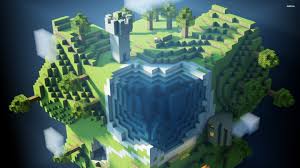
RESOURSE PACK
resource packs are packs which change your MC fully.
experience
the experience just feels good. there are many mods ,resource packs 'n' more....
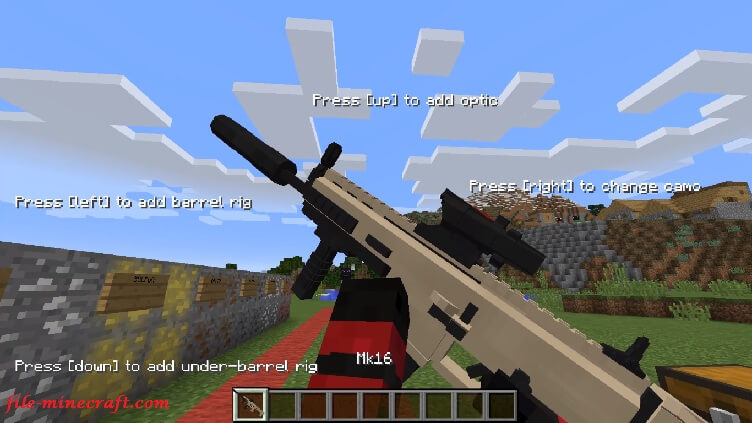
MODS
mods [modifications] nowadays make minecraft more enjoyable there are mant things like GUNS,AEROPLANES,BUILDINGS ' N' MORE. MODS HELP US TO MODDING MC AS IT MAKES IT INCRESES THE FUN OF MINECRAFT.